Getting Started
This guide explains the basic usage of Chrova and the relationship between Register Folder, Import, Catalog, and Thumbnails.
Basic Concepts
📚 Catalog
A database that manages metadata for photos and videos. The catalog stores the following information:
- File name, size, hash value
- Capture date/time, camera info, GPS data (EXIF)
- Rating, flags, title, caption (user-added)
- Reference to original file (relative path)
Important: The catalog stores only metadata; original files are kept in a separate location.
📁 Source Folder
A folder where original files are stored. By registering it in Chrova, you can manage files within that folder.
- Can be external drives, NAS, or folders within your Mac
- Multiple source folders can be registered
- Offline folders are detected and notified
🖼️ Thumbnail
A reduced-size image generated from the original file. Used to speed up grid display.
- Saved in HEIC format
- Stored in a dedicated directory within the catalog folder
- Organized by capture date (YYYY/MM/DD)
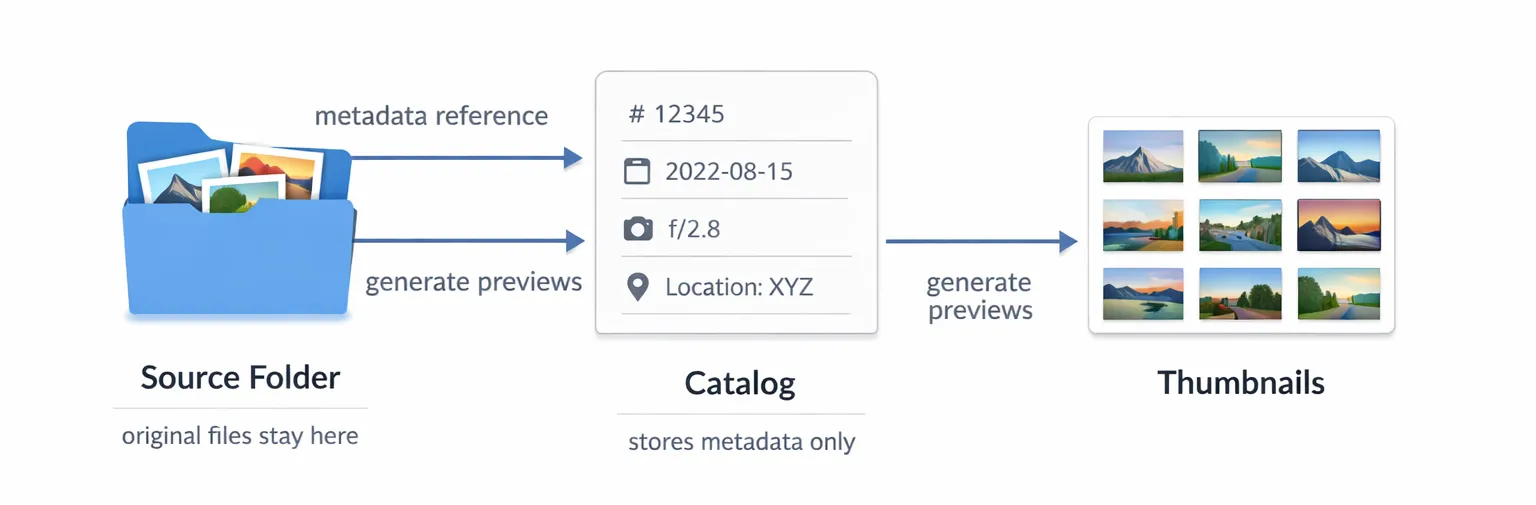
Scenario 1: Managing an Existing Photo Folder
If you already have a photo folder organized in YYYY/MM/DD format, you can use Register Folder to manage it with Chrova.
Example Folder Structure
/Volumes/Photos/MyLibrary/
├── 2024/
│   ├── 01/
│   │   ├── 01/
│   │   │   ├── IMG_0001.jpg
│   │   │   └── IMG_0002.jpg
│   │   └── 15/
│   │       └── IMG_0100.jpg
│   └── 12/
│       └── 25/
│           └── IMG_0500.jpg
Register Folder Steps
Click "Register Folder" in the toolbar
Or add a source folder from the settings screen.
Select the folder you want to manage
Select /Volumes/Photos/MyLibrary/.
Important: Select the parent folder (root folder), not the YYYY/MM/DD folders.
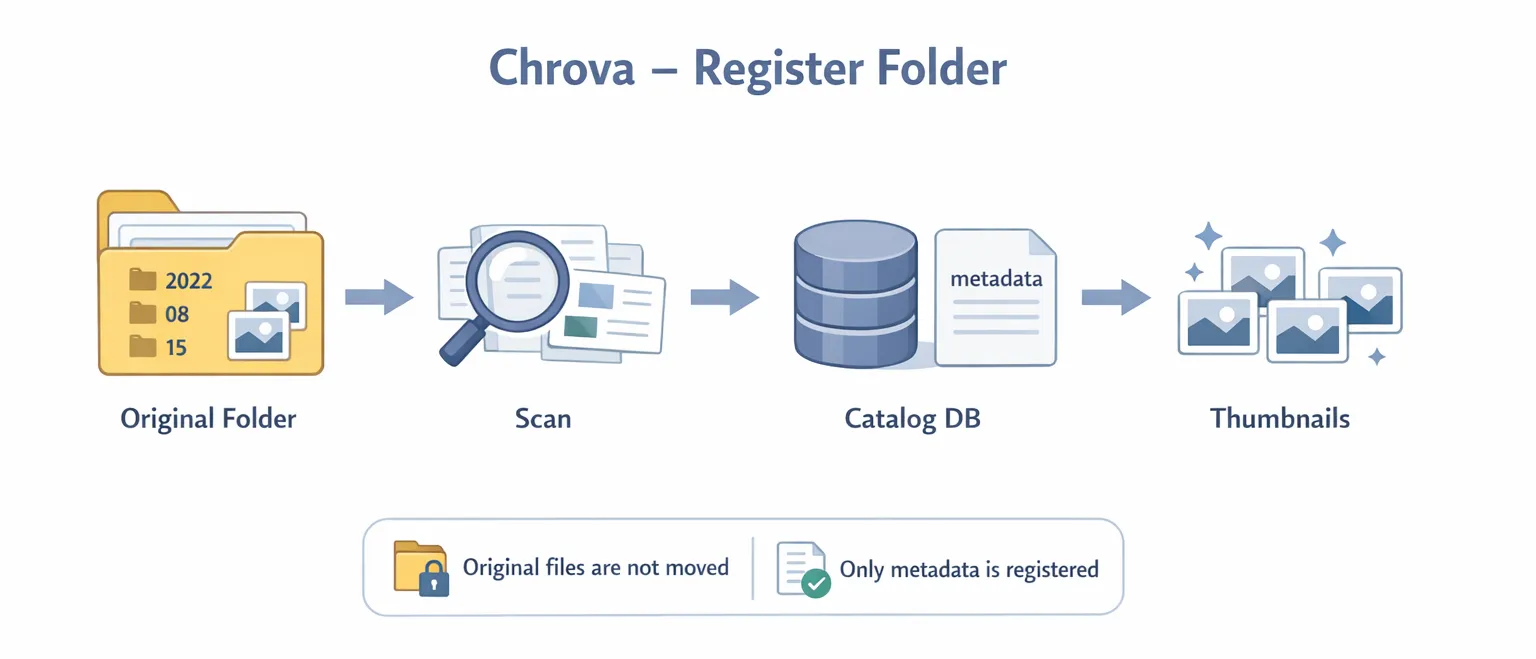
Scanning begins
Chrova performs the following processes:
- Search for all photo/video files in the folder
- Read metadata (EXIF) for each file
- Calculate file hash
- Register in database (catalog)
- Generate thumbnails
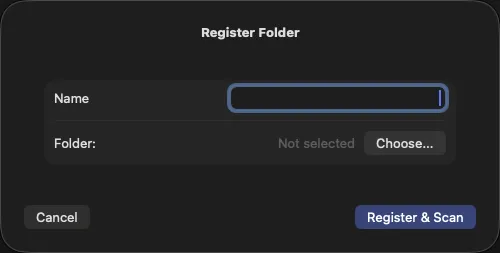
What Happens
✓ Original files are not moved
Files remain in their original location (/Volumes/Photos/MyLibrary/).
✓ Metadata is registered in the database
Information for each file is saved in the SQLite database within the catalog file.
✓ Thumbnails are generated
Thumbnails are saved in thumbnails/YYYY/MM/DD/ within the catalog folder.
Registering an Empty Folder
You can also register an empty folder. In this case:
- The scan process completes immediately (0 files)
- You can add photos to this folder later using the Import function
- Can be used as a destination for new photos
Recommended: Create a dedicated folder for organizing new photos and register it empty for convenience.
Scenario 2: Importing New Photos
When importing new photos from an SD card or another folder into Chrova, use the Import function.
Import Steps
Preparation: Register destination folder
First, register the folder where you want to save photos.
Example: /Volumes/Photos/MyLibrary/
Click "Import" in the toolbar
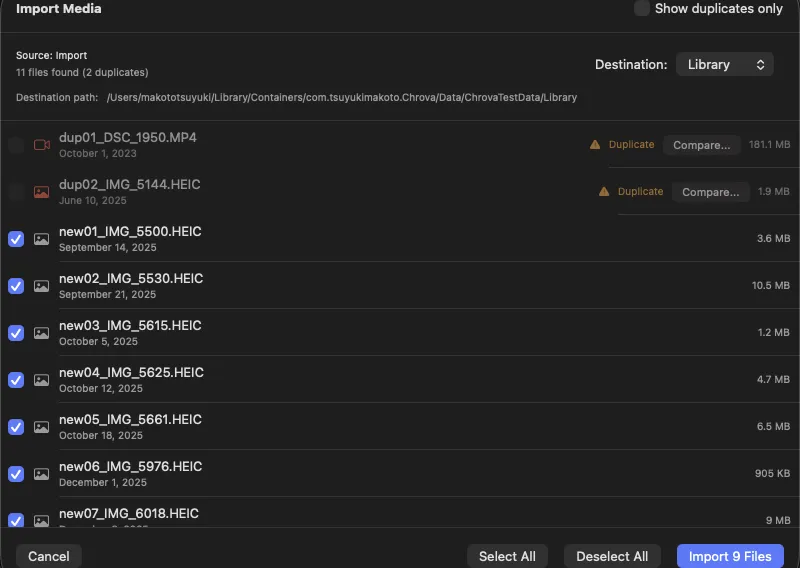
The Import dialog opens.
Select import source folder
Select an SD card or another folder.
Example: /Volumes/SD_CARD/DCIM/
Chrova automatically scans files and displays them in a list.
Select destination folder
From the "Destination" dropdown, select a registered folder.
Example: MyLibrary (/Volumes/Photos/MyLibrary/)
Select files to import
All files are selected by default. You can deselect files as needed.
Duplicate files are automatically deselected (see below).
Click "Import X Files"
The import process begins.
What Happens During Import
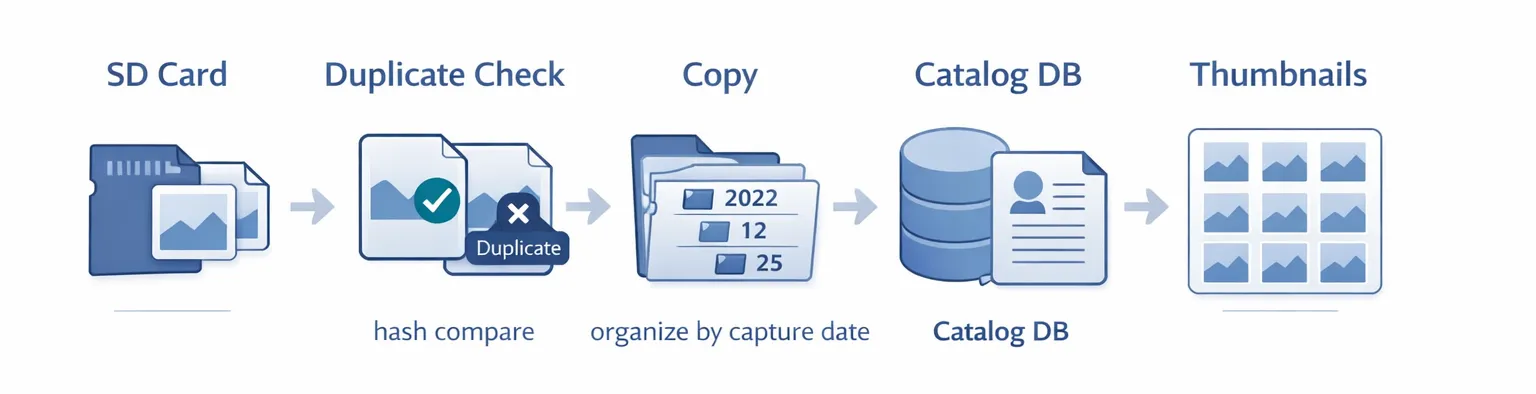
1. File Copy
Selected files are copied to the destination folder.
Source:      /Volumes/SD_CARD/DCIM/IMG_1234.jpg
Destination: /Volumes/Photos/MyLibrary/2024/12/25/IMG_1234.jpg
Organization Rule: Files are automatically organized into YYYY/MM/DD/ folders based on capture date/time (EXIF).
2. Duplicate Check
Before import, file hash is calculated and compared with files already registered in the catalog.
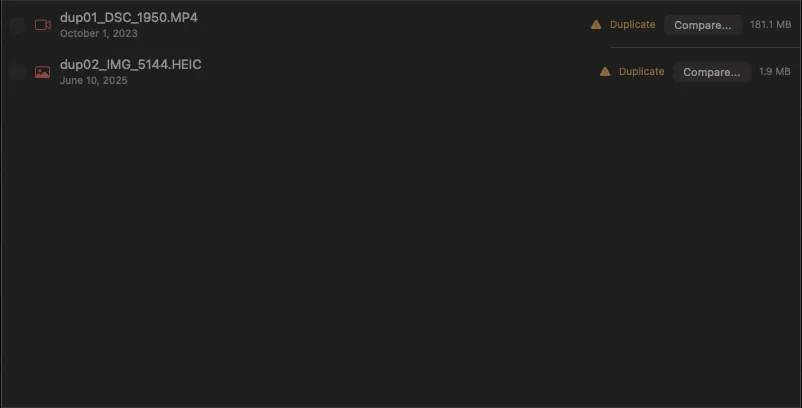
- Detected duplicates are marked as "Duplicate" in the list
- Deselected by default (will not be imported)
- Use "Compare..." button to view details (see below)
3. Database Registration
Metadata of copied files is registered in the catalog.
4. Thumbnail Generation
Thumbnails for each file are generated and saved in the catalog folder.
Import and Filename Conflicts
If a file with the same name already exists in the destination folder, a sequential number is automatically added:
Existing: IMG_1234.jpg
New:      IMG_1234_1.jpg  ← Sequential number added automatically
Note: This is a filename conflict, different from hash-based duplicate detection.
Handling Duplicate Files
Duplicate Detection Mechanism
Chrova detects file duplicates using the following method:
File Hash Calculation
- Files under 2MB: Calculate hash of entire file
- Files 2MB or larger: Calculate hash of first 1MB and last 1MB
If a file with the same hash value already exists in the catalog, it is detected as a "duplicate".
⚠️ Possibility of False Positives
For files 2MB or larger, only the beginning and end are checked, so different files may rarely be judged as duplicates. Therefore, we provide a comparison function.
Comparing Duplicate Files
Click the "Compare..." button for a file marked as duplicate to open the comparison screen.
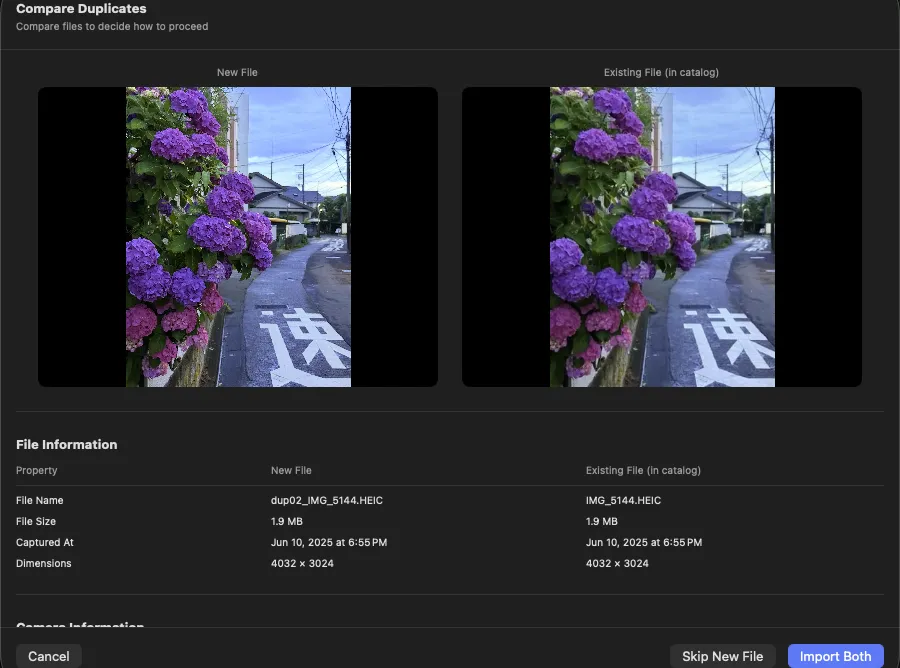
Three Options
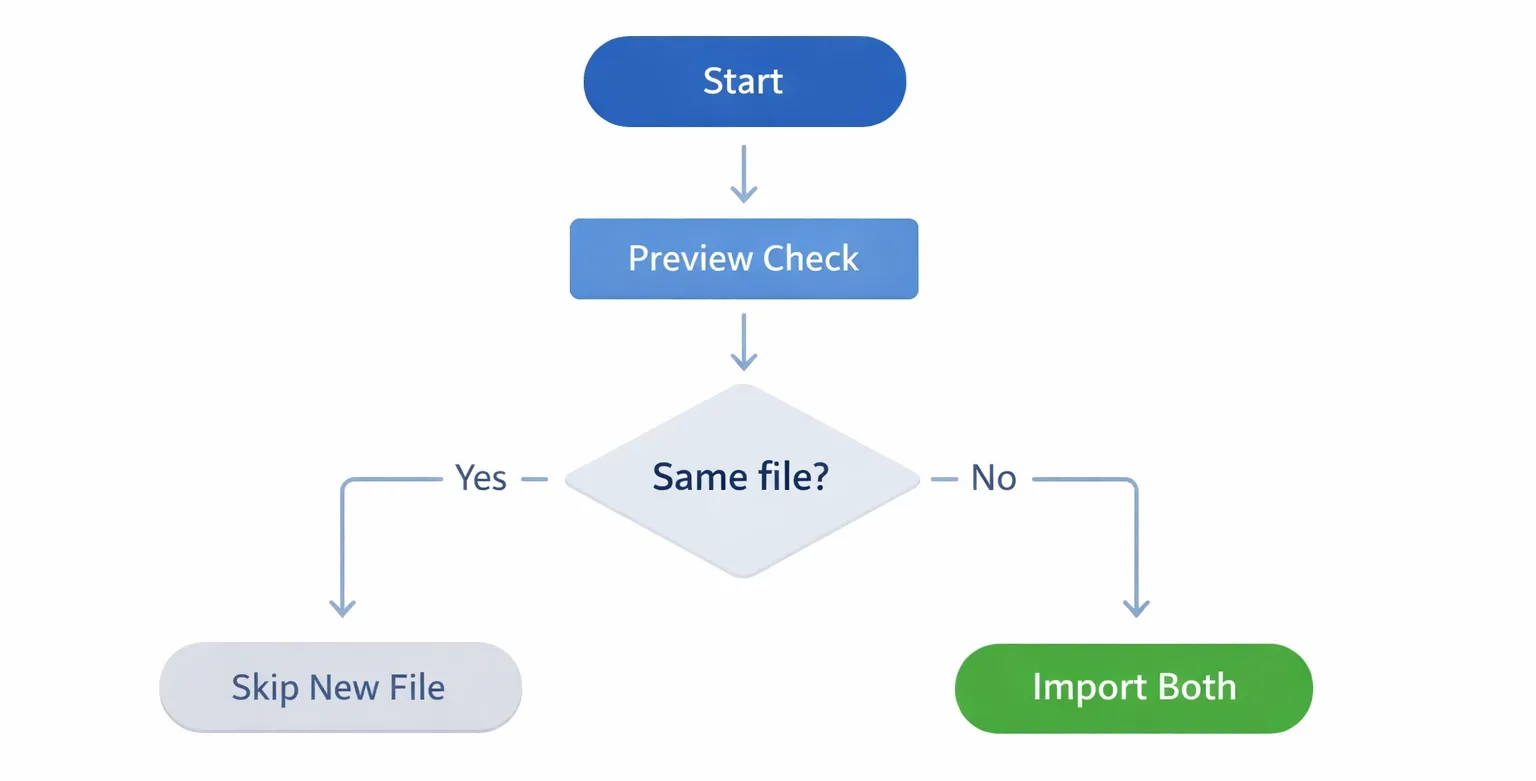
Skip New File
DefaultAction: Do not import the new file and keep the existing file as is.
When to use:
- ✓ Attempting to re-import an already imported file
- ✓ After checking the preview, confirmed they are identical files
- ✓ No issues with the existing file
Example: When attempting to re-import photos from the same SD card that was already imported.
Import Both
Action: Treat the new file and existing file as separate and register both in the catalog.
When to use:
- ✓ After checking the preview, found they are actually different files
- ✓ Metadata (capture date/time, camera info, etc.) differs
- ✓ Rare false positive case (beginning and end coincidentally match for files 2MB or larger)
Example: When different photos with similar beginning/end are incorrectly detected as duplicates.
Note: If filenames are the same, a sequential number (_1) is automatically added to the new file.
Decision Flowchart
Frequently Asked Questions
Q: Where are original files stored?
A: They are stored in the location specified with Register Folder or the destination folder specified during Import. Chrova does not move files to another location; they remain in their original location (or import destination).
Q: Where are thumbnails stored?
A: They are stored in the thumbnails/ folder in the same directory as the catalog file (.chrova). Further organized by capture date into folders.
Q: What happens if I move a source folder?
A: If you move a source folder, Chrova will be unable to find the files and will detect it as offline. You can use the "Relocate" function in the settings screen to reset the new location.
Q: What happens when I disconnect an external drive?
A: Source folders on that drive are detected as offline and a notification is displayed. When you reconnect the drive, it is automatically recognized.
Q: If I delete a catalog, will original files be deleted too?
A: No. The catalog stores only metadata; deleting the catalog does not affect original files. However, thumbnails are deleted along with the catalog.
Q: What's the difference between Register Folder and Import?
| Register Folder | Import | |
|---|---|---|
| File Movement | None (stays in place) | Yes (copied) |
| Use Case | Existing organized folders | Importing new photos |
| Folder Organization | Maintains existing structure | Automatically organizes into YYYY/MM/DD |
| Duplicate Check | None | Yes |
Q: Can I use the same folder for both Import destination and Register?
A: Yes, it's possible. The recommended approach is:
- Register an empty folder to use as destination
- Specify that folder as the destination in Import
- Imported files are automatically registered in the catalog