See the whole route
Choose a recording from your GPX folder. Inspect timestamps and coordinates while following the route on the map.
 Vroma Studio Track
Open a recorded route on your Mac and adjust the points that need attention. Replay the journey and revisit marker comments, with an app focused on GPX viewing and editing.
Mac · macOS 14+
Mac App Store
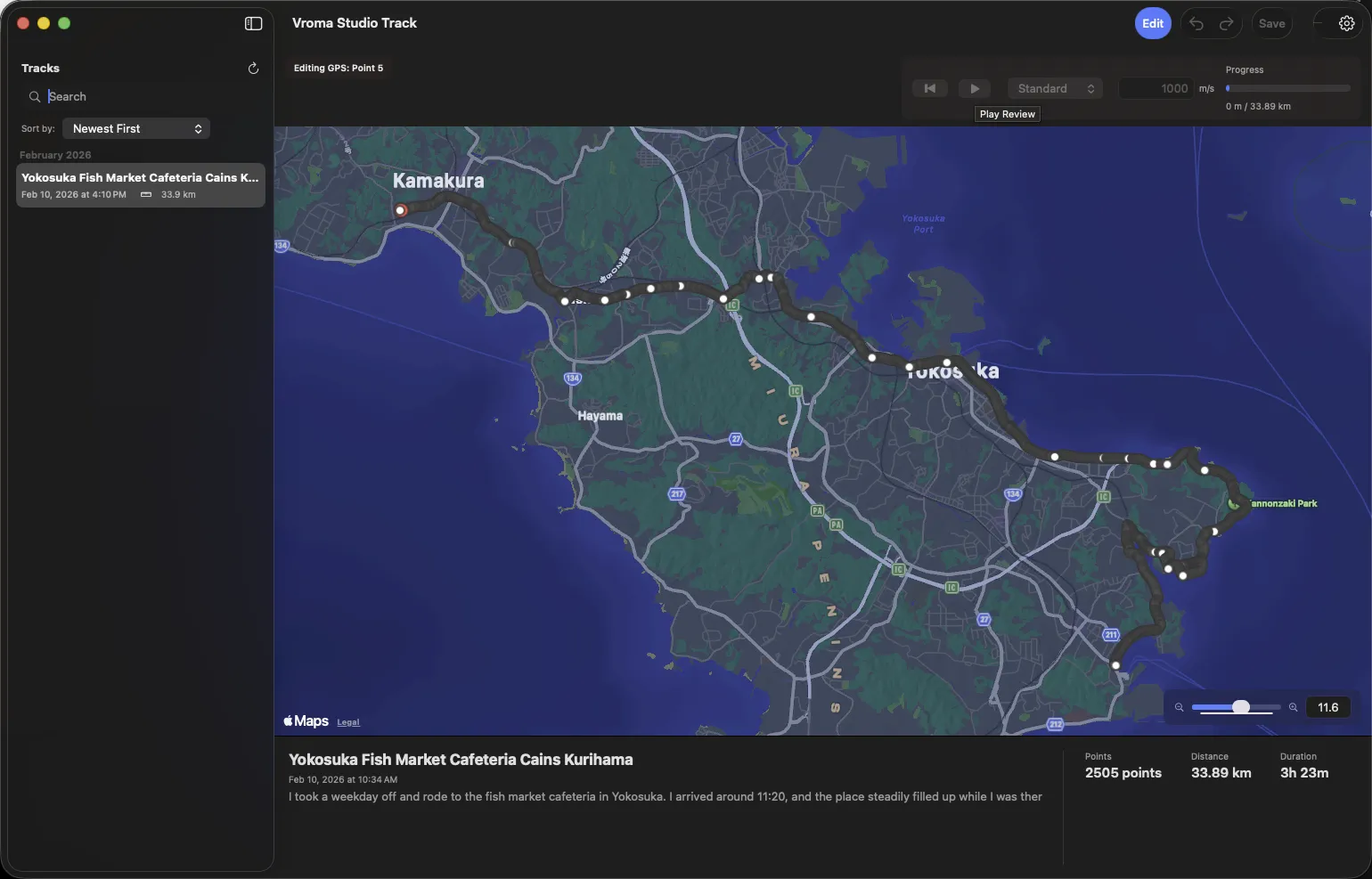
Choose a recording from your GPX folder. Inspect timestamps and coordinates while following the route on the map.
Add, move or remove track points. Review start and end locations before sharing a route.
Replay your route in order and review saved markers. Edit their comments after the trip.
Mac · macOS 14+
Mac App Store
Save an exported GPX file on your Mac. If you have a marker CSV, copy that too.
Open the folder containing your GPX files and choose a recording. Inspect the route and its points on the map.
Adjust points in edit mode, then replay the route. Open the GPX in Chrova when you want to connect the route with photos.
Studio Track focuses on GPX viewing, editing and playback. Use the direct-download Vroma Studio edition to export map videos.
Chrova manages photos and videos and corrects their catalog locations. Use the same GPX file in Chrova to connect the workflow.
Check the App Store for compatibility and distribution details.
Routes, photos and footage. Follow the file handoffs and discover how the apps work together.