Return to a moment from your trip
Record your route and Marks (times and comments for moments to remember) in Vroma while filming with your own camera. At home, follow the map and comments to revisit the day. Browse your photos and videos in Chrova using readable capture times and GPX.
Want shorter scenes? Explore the Cut problems and design. Want to make a film? Explore the Edit problems and design. Read the problems I encountered, my solutions and their reasons. When useful, give AI the page URL or material and design conditions to build your own tool. Keep originals and check tools with copies.
Start with one GPX and Mark file in the publicly released Mac apps, then follow the map and comments. Use Chrova to browse photos and videos by date and place, or read Cut/Edit problems and designs when you want to build a trimming or film-making tool.
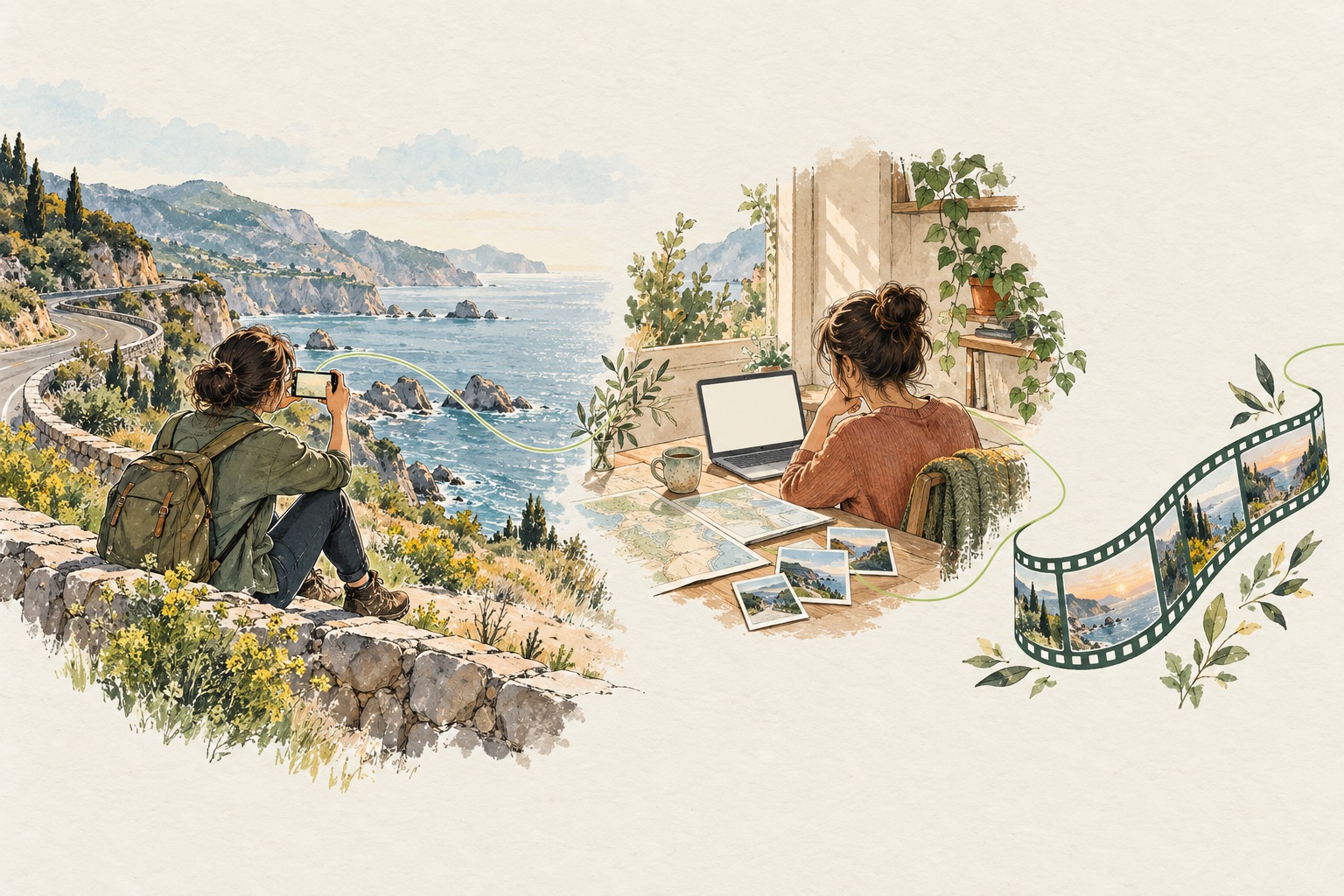
Open a route and a Mark on your Mac. You can revisit a trip without adding photos or video; add them when you want to find a particular scene.
Prepare your files
Put the GPX route and its matching Mark CSV in the same folder on your Mac: for example, trip.gpx and trip.marks.csv. If you use iCloud Drive, check that both files have downloaded to the Mac. Photos and video can stay in separate folders.
Leave a reminder on your iPhone
- Choose a recording folder, allow location access Always, and start recording before setting off.
- Add a Mark when you want to remember a moment. The time is saved before you type a comment.
- Add a short comment when it is safe to do so, then finish the recording on your iPhone.
- Check that the GPX and Mark files are saved, and make them available on your Mac.
An external camera is optional. Route recording does not require a camera connection. If you use CarPlay, finish the recording on your iPhone.
Revisit the route and comments on Mac
- Open the folder containing your GPX in Studio Track or Studio.
- Select the route you want to revisit and inspect it on the map.
- Select a recorded point to check its time and coordinates.
- Use Mark times and comments to return to places you remember.
Public version 1.2 supports point details, moving or deleting multiple points, adding Marks and editing comments. Keep a copy before route edits and reload the saved file to check the result. After changes on another device, download the file to your Mac and check its contents.
Public release references: Studio Track on the App Store ↗ and Studio releases ↗.
Revisit photos or video
To find photos and videos by date and place, register your media and GPX folders in Chrova. Capture dates and the route’s time range help narrow the day’s media. The Chrova getting-started guide covers registration and browsing.
Public Studio/Track 1.2 also supports checking video corresponding to a recorded point and playing it with audio. Check that camera dates match the route using a recognizable video moment. Mark comments help you find the scene you remember.
When you want shorter scenes
Read the problems, solutions and reasons from my Cut tool and the resulting design. To build a tool for your camera and environment, give AI the URL or text, your media and purpose, and ask it to design and implement it. The design protects original video. If your own tool adopts comment editing, it requires source tracking and protection against concurrent overwrites.
When you want to make a film
Read the problems and solutions from my Edit tool. The design can use untrimmed recordings; trimming in Cut first is optional. Give AI the URL or material along with your media, order and displays when useful.
When something does not match
Check the FAQ for recording dates, file locations, saving, and synchronization. For a Vroma family issue, report the app version, steps, expected result, and actual display through Support. Precise location data and original video are not required for an initial report.